Table of Contents
1. Purpose
2. Scope
3. Procedure
1 - Locating the invoice on BashAdmin
2 - Invoice not downloading - troubleshooting
3 - Editing an invoice
4. Attachments/Appendices
1. Purpose
This SOP outlines the process for downloading and editing invoices.
2. Scope
This SOP covers the process for downloading and editing invoices for all online orders
3. Procedure
Context:
Agents should prioritise assisting the customer by locating and providing the invoice when requested. Once support has been given, the agent can inform the customer that invoices are emailed to them once an order is placed successfully..
Parcels fulfilled by Riverfields DC will have a single invoice per parcel, listing all items included in that shipment. However, if the parcel is fulfilled from a store, each item will have its own individual invoice, even if the items were shipped together in the same parcel.
1 - Locating the Invoice on BashAdmin
1.1) Log into BashAdmin and search for the relevant order.
Scroll across to the “Invoice” column. You’ll find a download link there (Check Annexure A).
1.2) Click on the download link to open and view the invoice.
2 - Invoice not downloading - troubleshooting
2.1) In some cases, the invoice download link may appear greyed out (Check Annexure C), which means the invoice isn’t immediately accessible
When this occurs, check if the invoice can still be generated manually through BashAdmin.
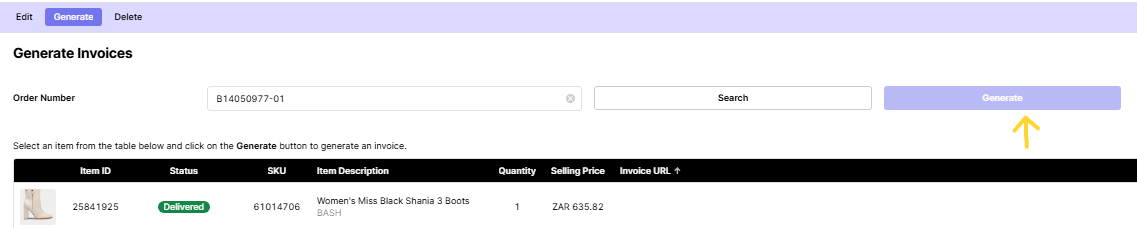
2.2) Go to the Invoice Editor on BashAdmin. Enter the relevant order number into the “Order Number” field and click “Search”. All items in the order will load, each with its associated Invoice URL attached. If an item does not have an Invoice URL, one will need to be generated.
Click on the item that’s missing the URL.
Then click the “Generate” button to create a new invoice link. (Check Annexure D).
2.3 If you’re unable to generate the invoice on BashAdmin after completing the steps in 2.2, proceed to step 3.2.
3 - Editing an Invoice
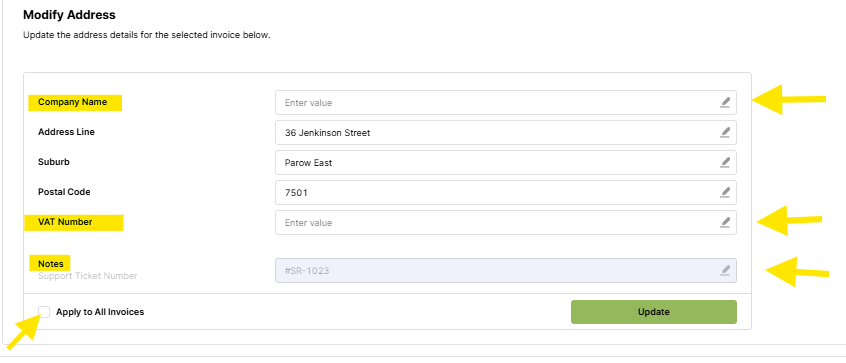
We are able to edit an invoice for a customer for Tax/VAT purposes; however, we are only able to add certain information to the invoice and not change the existing information.
Information that can be added is listed below:
Company Name
VAT Number
3.1) Go to the Invoice Editor on BashAdmin. Enter the relevant order number into the “Order Number” field and click “Search”. (See Annexure E.)
Click on the pen to edit (We are only editing the Company name and VAT Number)
Add your Freshdesk ticket to the “Notes” field
Tick the "Apply to All invoices" option
Click update
3.2) If you’re unable to edit the invoice on BashAdmin after completing the steps in 3.1 or you have edited the invoice incorrectly, escalate the issue with the Order Management team by submitting the Invoice generating error Freshservice catalogue item
3.3) Refer to the Escalation Support SOP for further escalation details and steps. The SOP will cover the information that needs to be provided and how to handle feedback from the escalation team.
NB: We are only able to amend an invoice once, please make sure the details are updated correctly the first time!!
4. Attachments/Appendices
Annexure A.
Annexure B.

Annexure C.

Annexure D.
Annexure E.
Note:
This SOP is a living document and should be reviewed and updated regularly to ensure accuracy and relevance.
All employees involved in the process should be familiar with and adhere to this SOP.
Was this article helpful?
That’s Great!
Thank you for your feedback
Sorry! We couldn't be helpful
Thank you for your feedback
Feedback sent
We appreciate your effort and will try to fix the article